File manager
The File manager hosts the static assets your web pages need — stylesheets, scripts, images, and other media — on the tenant's disk, plus any files your agents or events read and write. Uploaded files are served from /cdn/... and can be referenced directly from templates.
Requires an active configuration. Select one on the Settings page first.
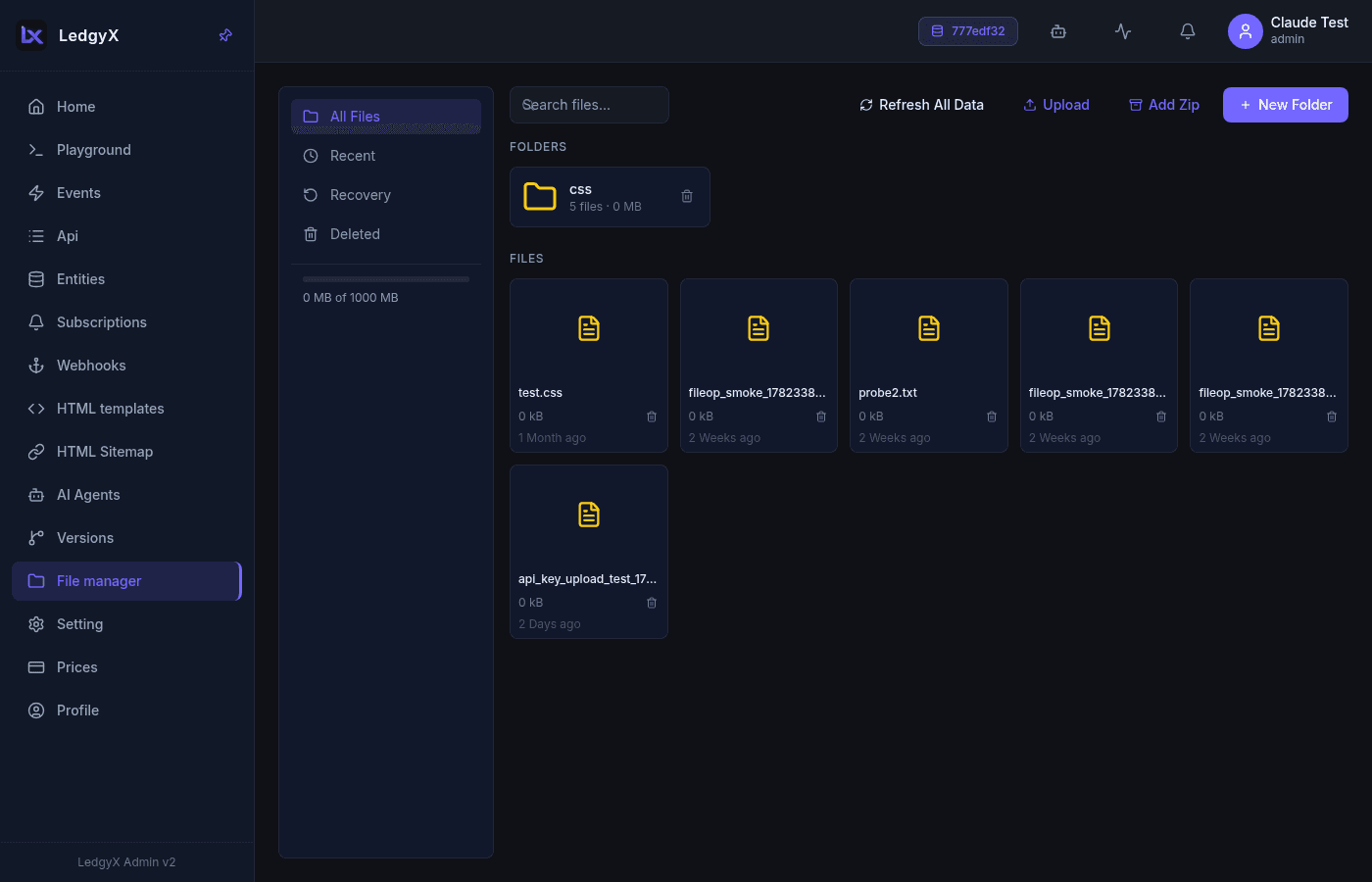
Layout
Two columns: a sidebar on the left and a content area on the right.
Sidebar:
- Filters: All Files, Recent, Recovery, Deleted
- A storage bar showing usage against your plan's disk quota (e.g.
X MB of 1000 MB)
Content area (All Files):
- Header with a Back button (inside a subfolder), search, and + New Folder
- Folders grid — name, file count, size, and a trash/recover action
- Files grid — an image thumbnail for images or a type icon otherwise; hovering reveals view (eye) and download actions
Uploading
Create folders to organise assets, then upload files (drag-and-drop supported). You can also upload an archive to have it extracted into place. For external callers, an API-key-authenticated upload endpoint is available.
Viewing files
Click the eye icon on a text-viewable file to open a read-only Monaco viewer in place — with a language badge, word-wrap, and a download link. Close it to return to the grid.
Trash & recovery
Deleting a file soft-deletes it (it moves to Deleted), so it can be recovered. In the Deleted view, Delete All soft-deletes everything visible and Clear Trash permanently removes it.
Referencing assets
Files are served under /cdn/.... Link them from a template:
<link rel="stylesheet" href="/cdn/css/style.css">
<script src="/cdn/js/app.js"></script>
Related: