Entities
The Entities page is where you define your data model — the tables, enumerations, constants, and contracts that your SQL events read from and write to. It is the visual equivalent of the CREATE DICTIONARY / CREATE ENUM / CREATE CONST statements documented in the SQL reference.
Requires an active configuration. Select one on the Settings page first.
Layout
The page has two columns:
- Left — entity tree. Root nodes are entity-type categories (
Dictionary,Enum,Const,Contract,Ethereum, …); leaf nodes are individual entities. A filter box at the top searches the tree. - Right — content panel. Shows a category's entity list (when a category is selected) or a single entity's editor (when a leaf is selected).
Creating an entity
- Select a category in the tree (for example Dictionary). The right panel lists the entities in that category with a + New Entity button in the top-right.
- Click New Entity.
- Enter an Entity Name (letters, digits and underscores only) and choose a Type from the dropdown (
Dictionary,Enum,Const,Contract,Ledger, …). The type is pre-filled to the category you entered from. - Add fields: click + Add Field, set the field Name, Type (Date, Boolean, Address, String, Number, JSON, Data, or a reference to another entity), and an optional description, then click + Append. Repeat for each field.
- Click Create Entity. The new entity appears in the tree.
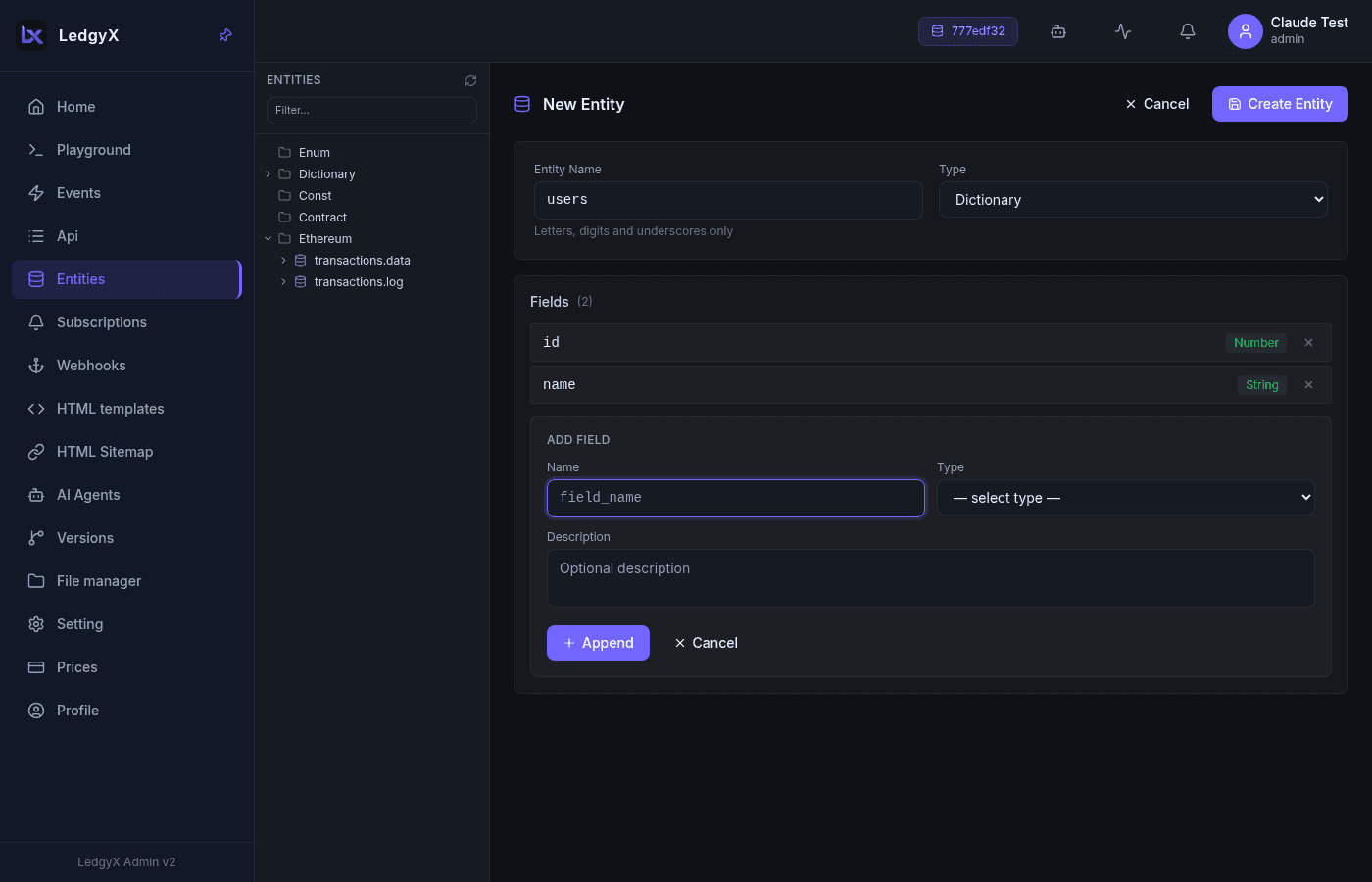
The same flow is walked through step by step in the Quick Start.
Editing an entity
Select an entity leaf in the tree to open its editor:
- The entity name is read-only — because an entity's reference is derived deterministically from its name, renaming it would create a different entity.
- Fields are shown as compact rows with a type badge (green = scalar type, violet = reference to another entity). Use Edit / Delete on a row, or Add Field to append a new one. For existing entities, field changes are saved immediately.
- Delete Entity removes the entity (with an inline confirm).
Field types
The field-type selector is grouped:
- System — scalar types:
String,Integer,Number,Boolean,Date,Address,JSON,Data. - Reference groups (e.g.
Dictionary,Enum) — pick another entity in the config to create a typed relationship. These render with a violet badge.
Dictionary data & Const values
- For Dictionary entities, a Data panel below the schema lets you view and edit actual rows — one column per field, with Add Row / Edit / Delete. Reference-typed fields render as a dropdown of the referenced entity's rows.
- For Const entities whose type is an Enum or Dictionary, the value editor renders a dropdown of that entity's values/rows.
Related:
- Object types & data structures — the underlying
CREATE DICTIONARY/ENUM/CONST/LEDGER/CONTRACTmodel - Creating DICTIONARY objects
- Playground — query your entities with SQL